

Quickstart
In this tutorial, we will build a React web app that video calls a Runway character — in under 5 minutes.
Helpful links:
1. Create a developer account
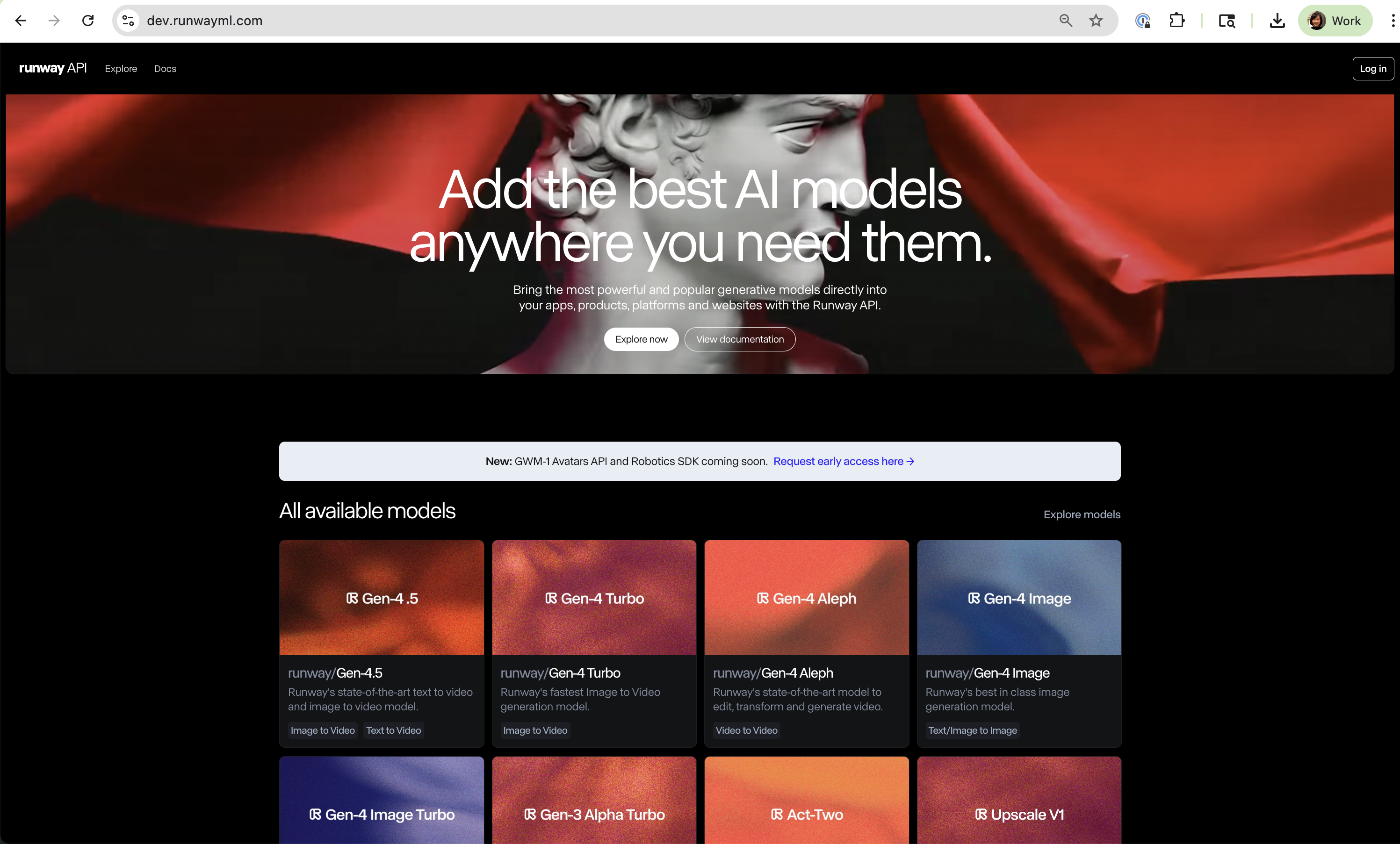
Section titled “1. Create a developer account”Create an account at dev.runwayml.com.
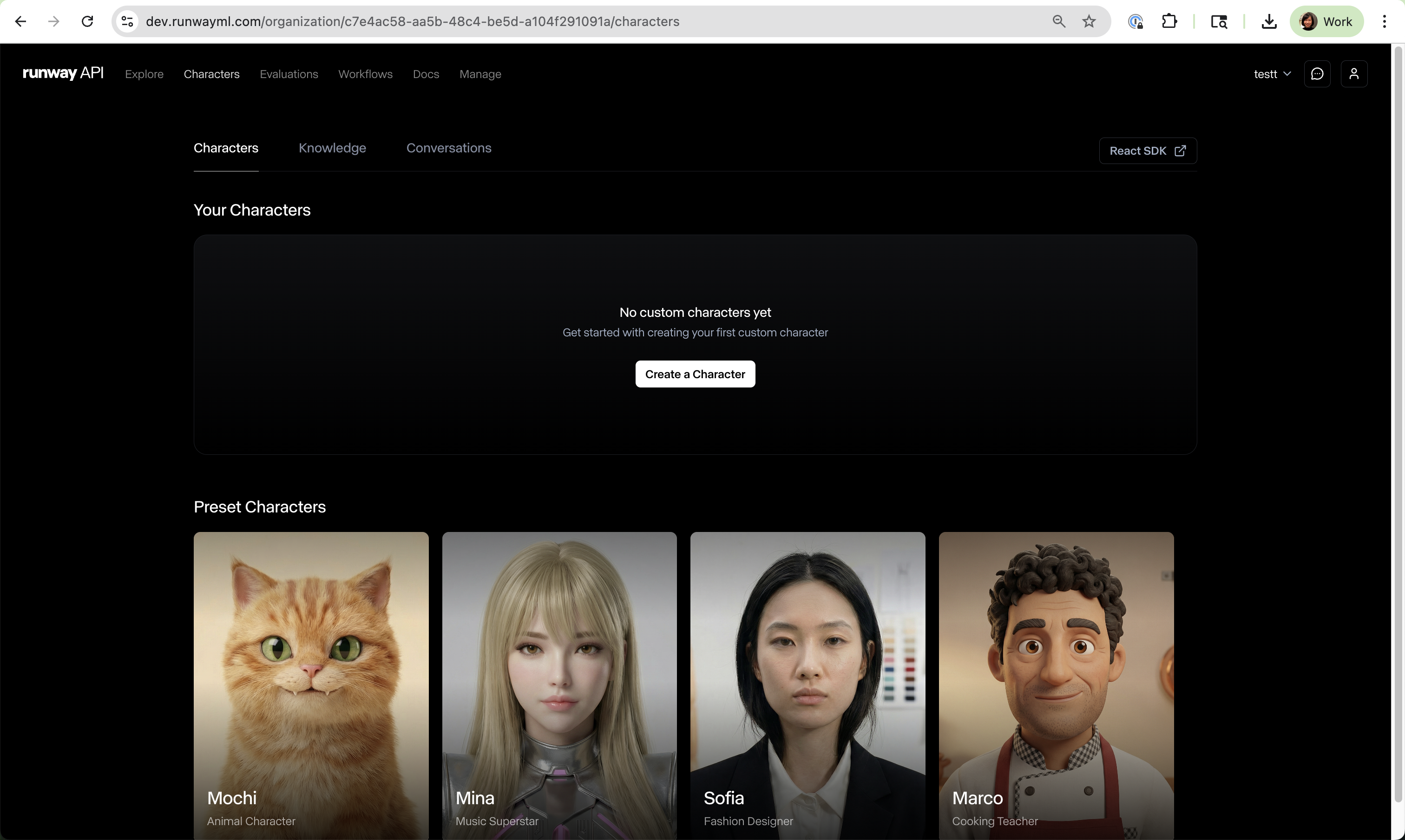
Once you log in, you will see an “Characters” tab at the top bar, and there are a few preset characters. We are going to video call the character called “Tooth”.
2. Create a new API key
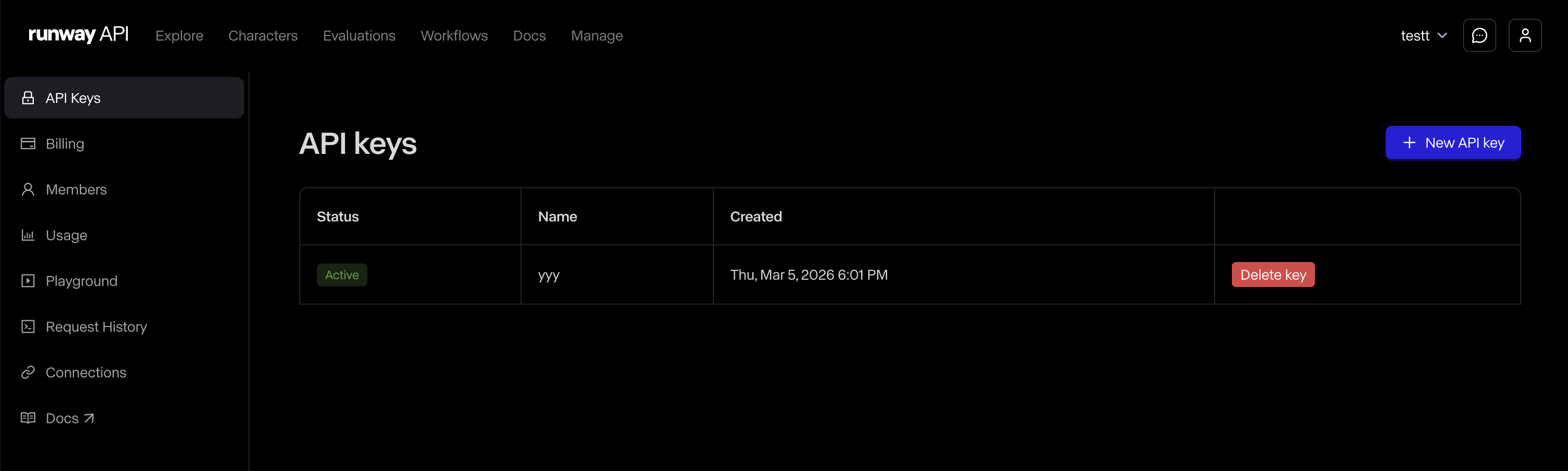
Section titled “2. Create a new API key”Go to the Manage tab in the top bar, then click the New API key button in the top-right corner.
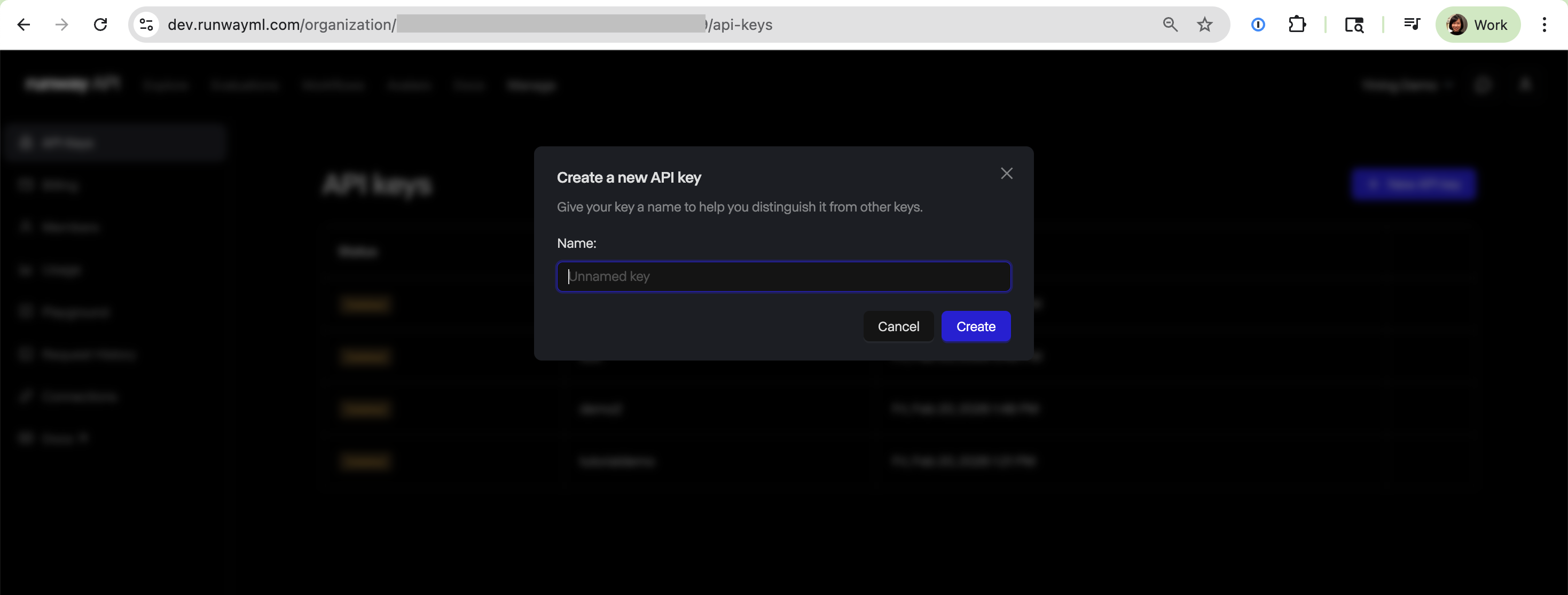
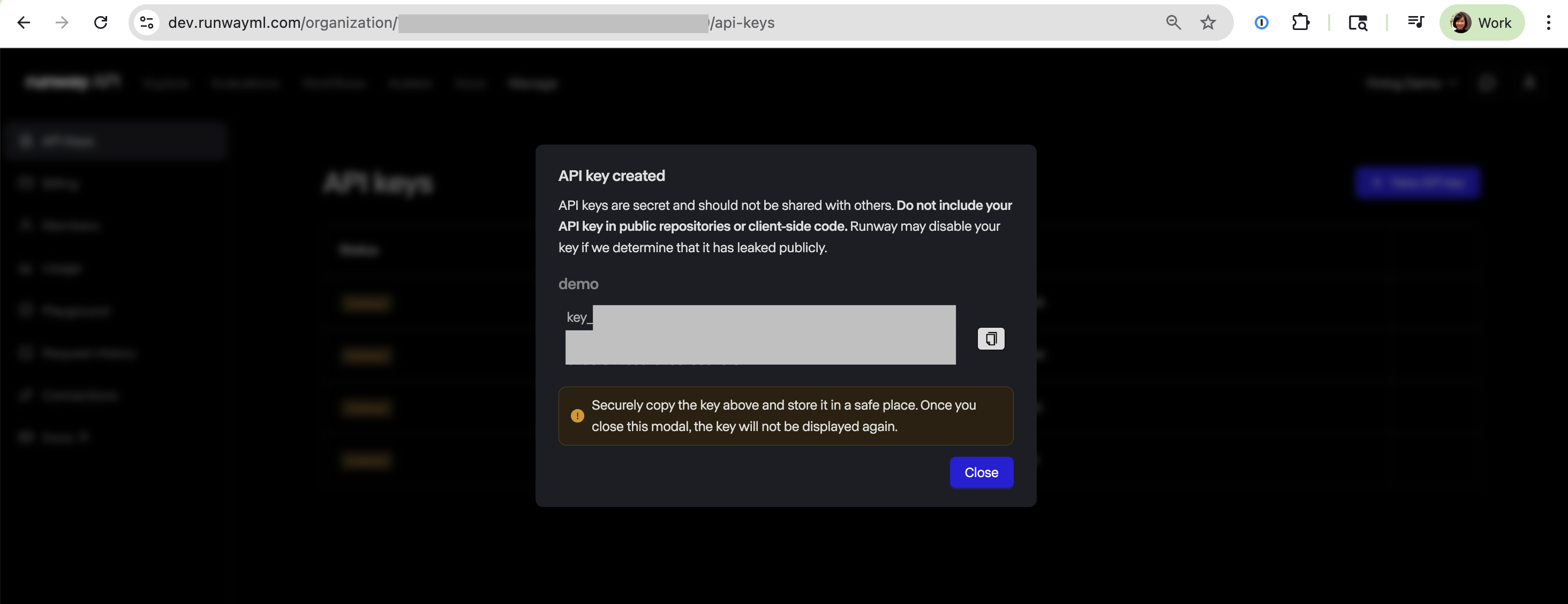
Give your key a name and copy it to a safe location. Once you close the pop-up, the key value is not available again. You can always create a new key if needed.
3. Add credits
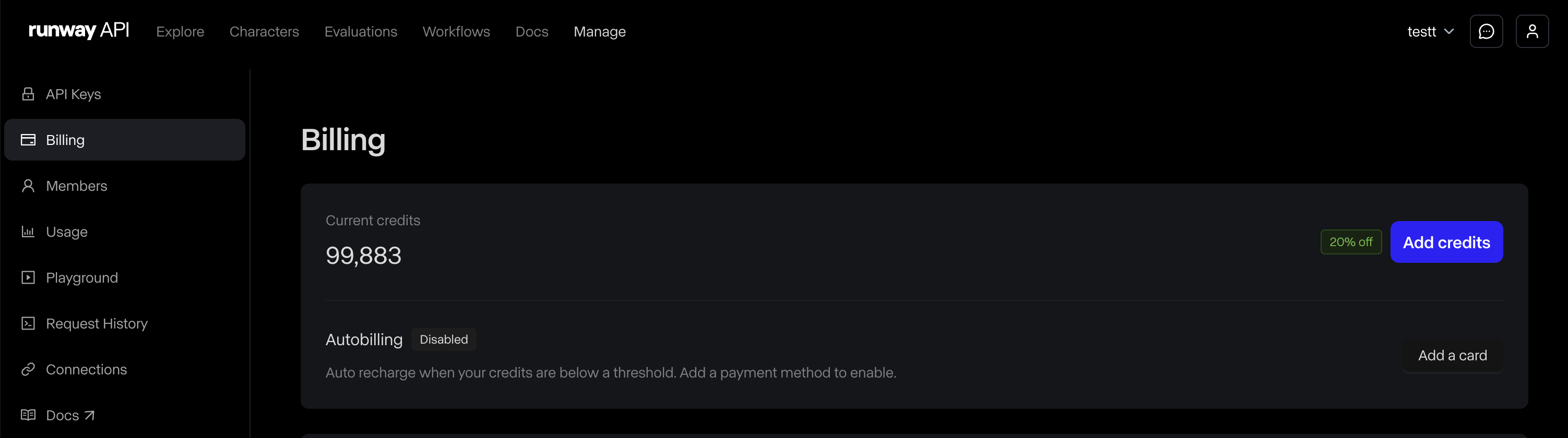
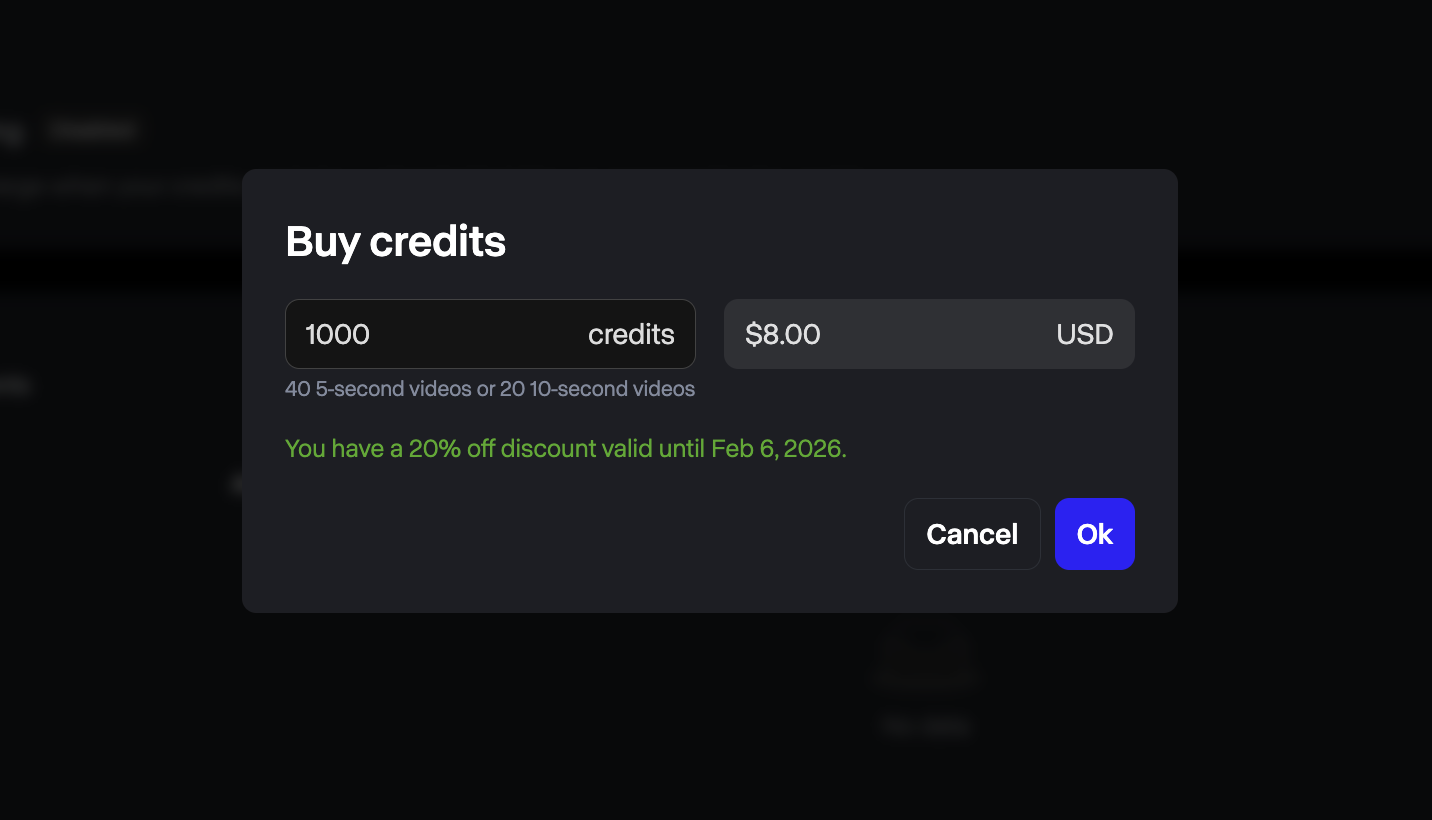
Section titled “3. Add credits”Click on Billing in the left sidebar under the Manage tab, and add some credits to the account.
4. Download the React app template
Section titled “4. Download the React app template”In your terminal, run this command to copy the template into your local directory:
npx degit runwayml/avatars-sdk-react/examples/nextjs-simple my-avatar-appcd my-avatar-app5. Install packages
Section titled “5. Install packages”Make sure you are using Node.js 18+, then install dependencies:
npm install6. Set your API key
Section titled “6. Set your API key”Copy the .env.example file as .env, and paste your API key:
RUNWAYML_API_SECRET=your_api_key_here7. Run the app
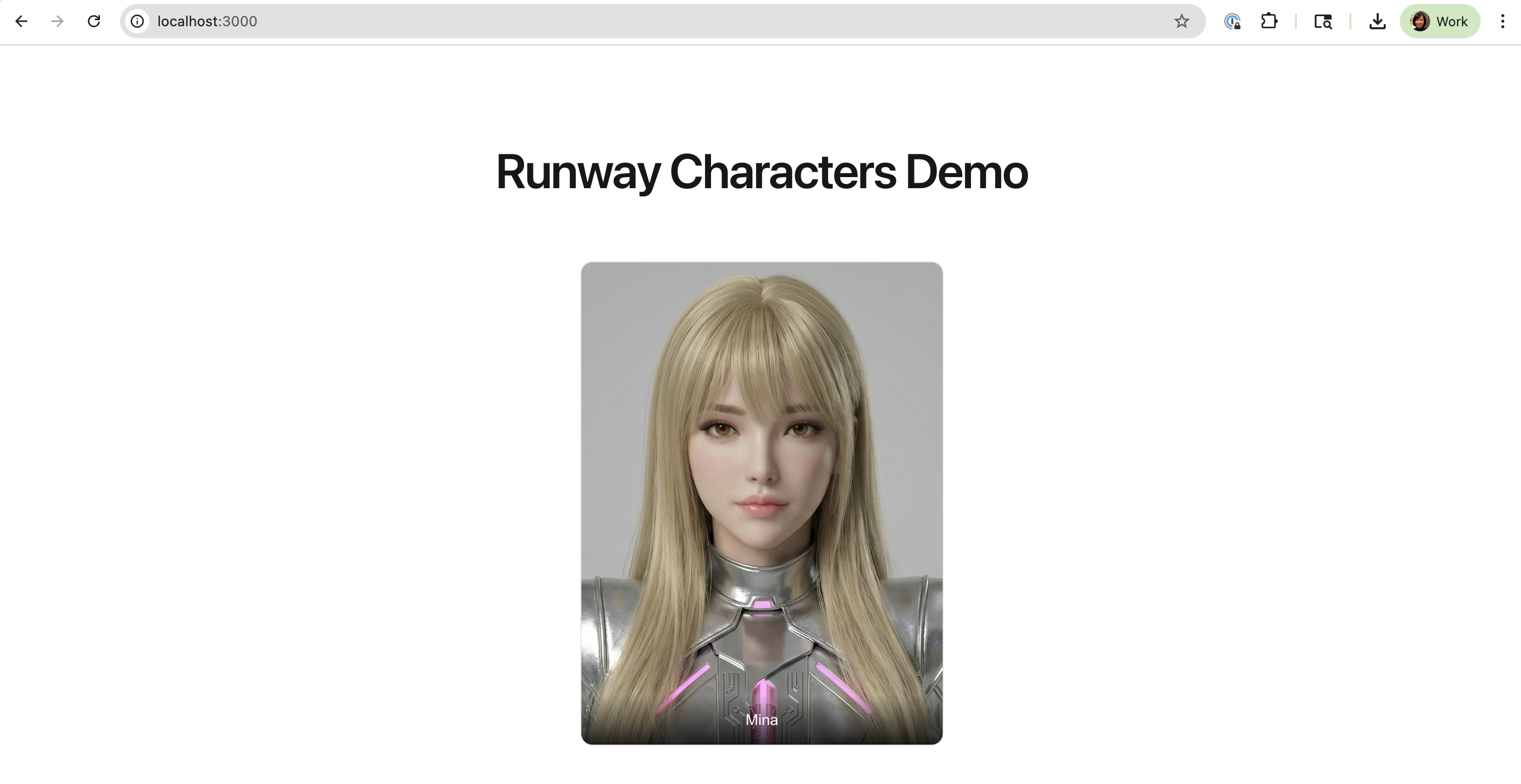
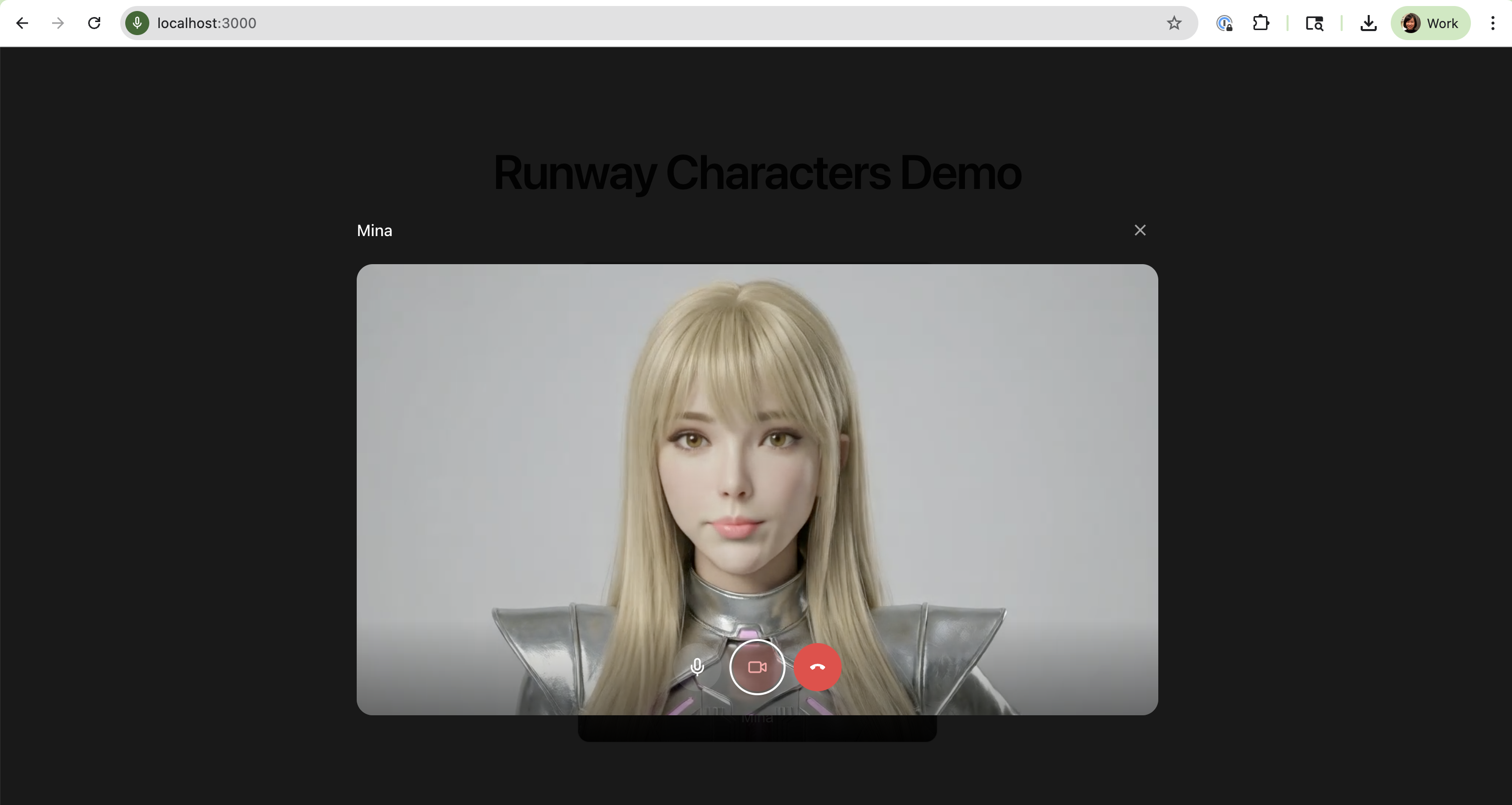
Section titled “7. Run the app”npm run devThe server starts at http://localhost:3000. Click on the Mina character to start a conversation.
Troubleshooting
Section titled “Troubleshooting”- API key errors:
- Make sure you copy the entire API key correctly. The key begins with
key_followed by 128 hex characters. - Make sure the key is currently active. Deactivated keys will be rejected.
- Make sure you copy the entire API key correctly. The key begins with
- No credits: Make sure the developer account has credits before starting a call.