

How to Invite a Runway Character to a Meeting
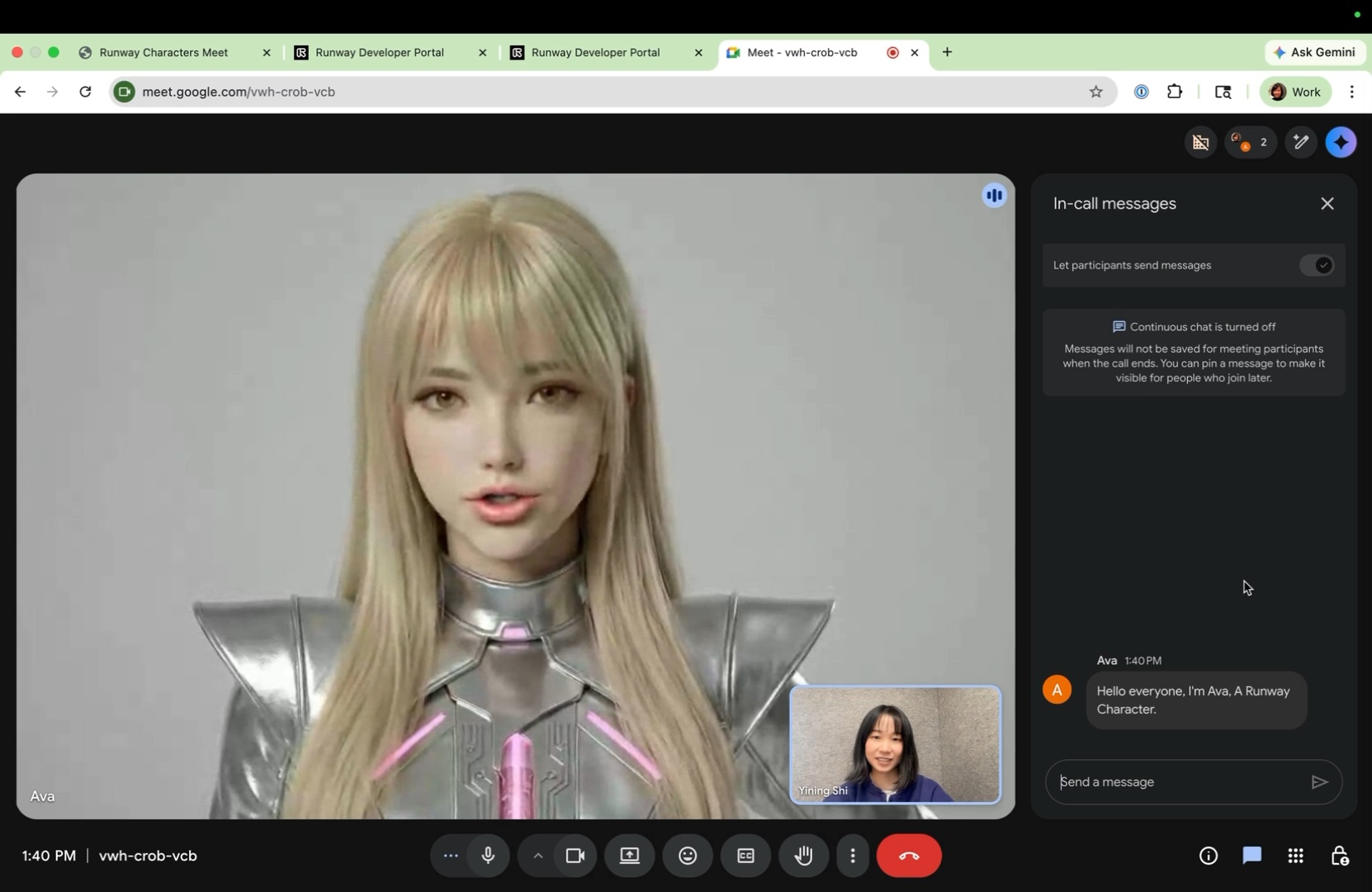
Invite a Runway Character to any Zoom, Google Meet, or Microsoft Teams meeting. The Character joins as a regular participant — it can see and hear other attendees and responds in real time with lip-synced video and natural audio.
The whole setup takes about 60 seconds.
Helpful links:
Step 1 — Get your API key
Section titled “Step 1 — Get your API key”Go to dev.runwayml.com and sign up. Every new account includes 600 free credits — roughly 30 minutes of Character video.
Once you’re logged in:
- Click the Manage tab in the top bar.
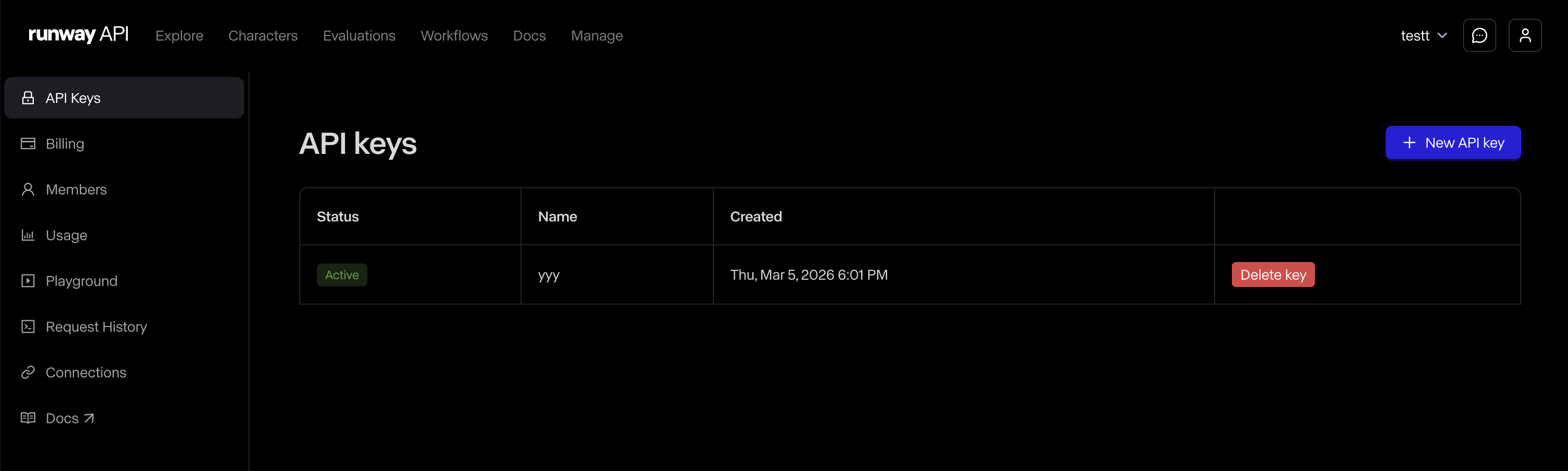
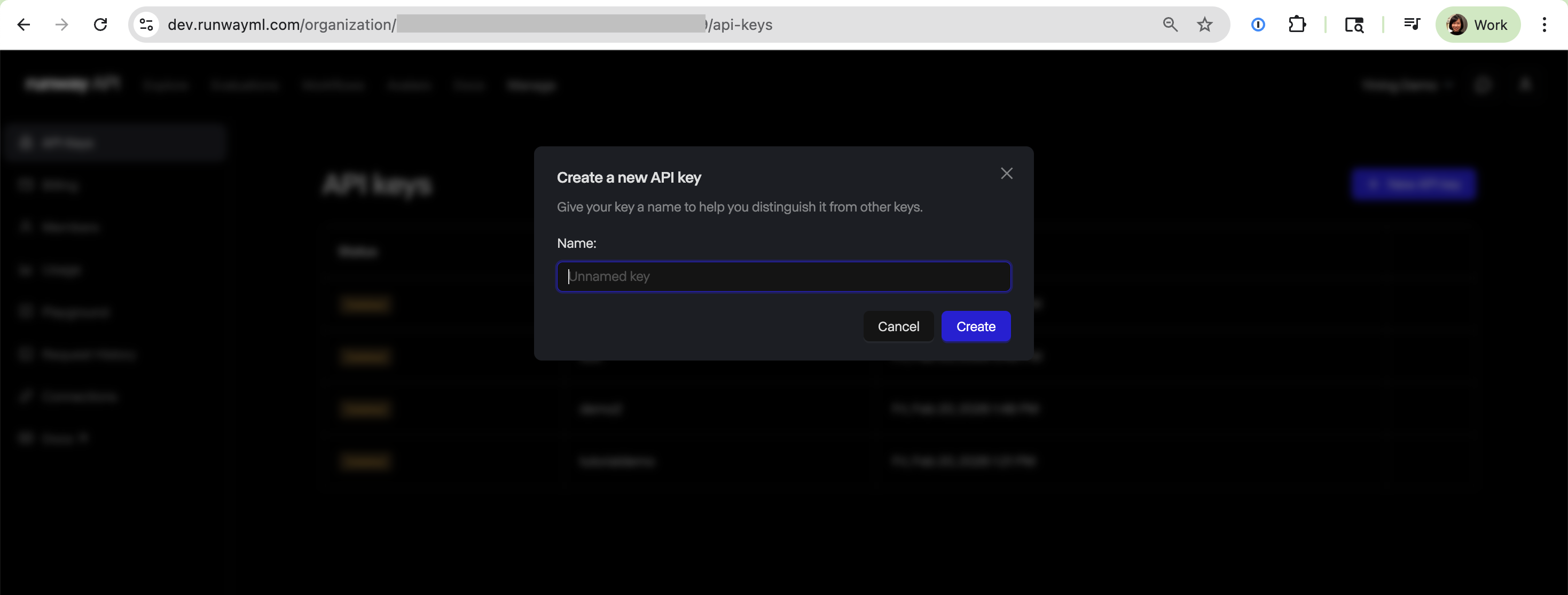
- Click New API Key in the top-right corner.
- Copy the key.
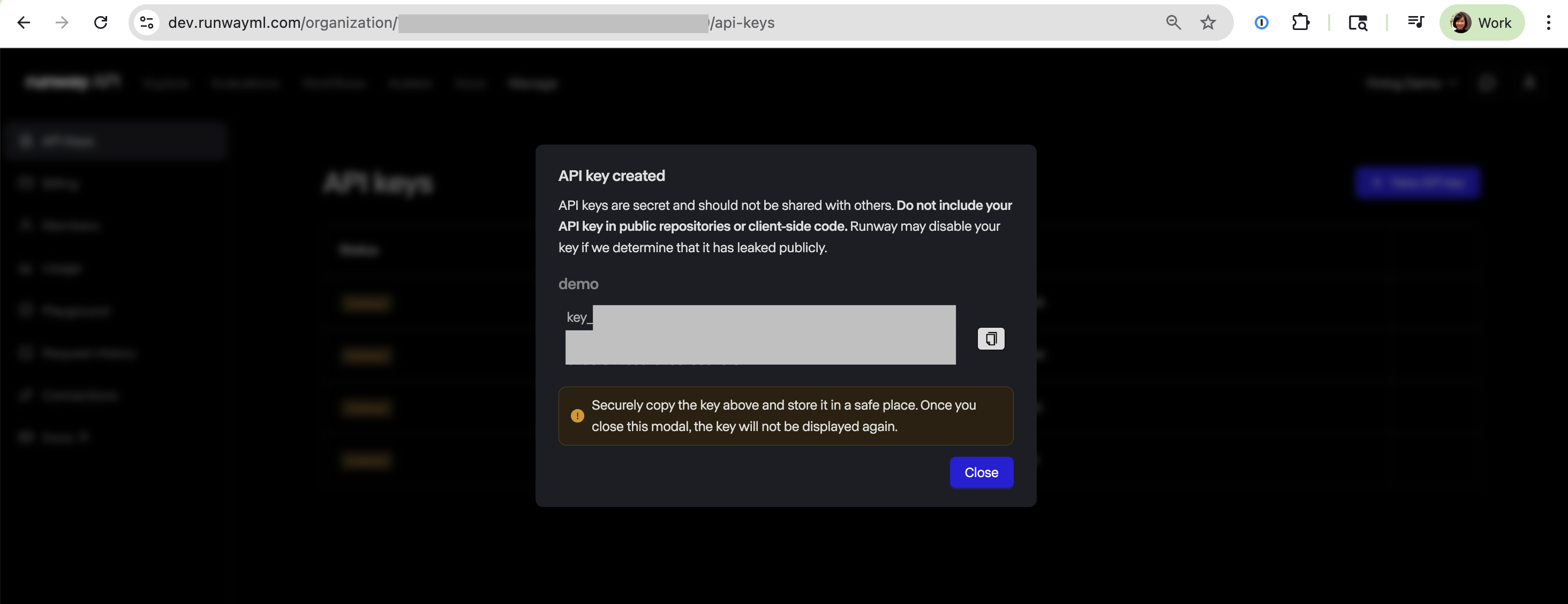
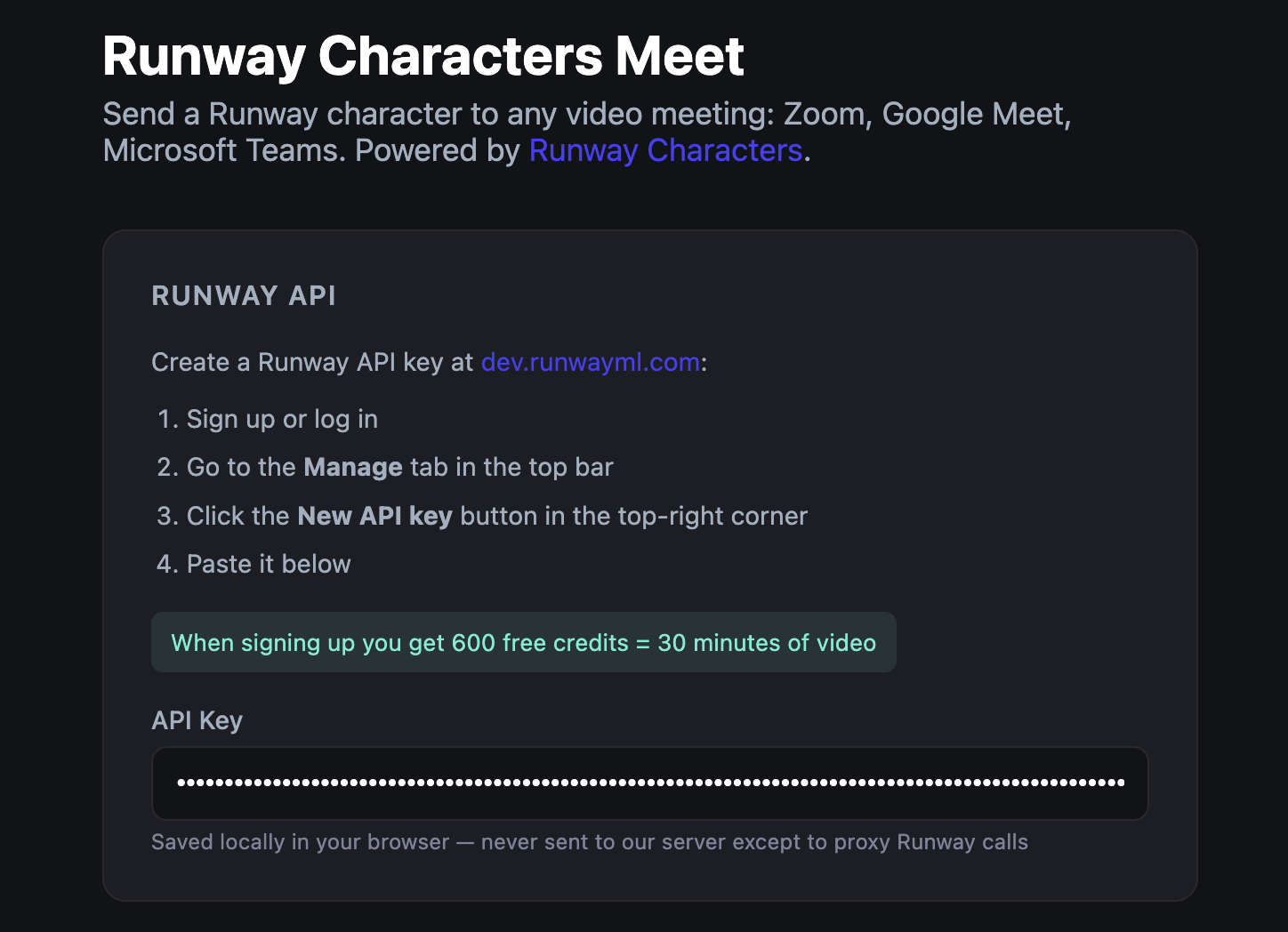
Back in the Runway Characters Meet web app, paste your API key. It’s saved in your browser and only used to communicate with the Runway API.
Step 2 — Add a meeting link
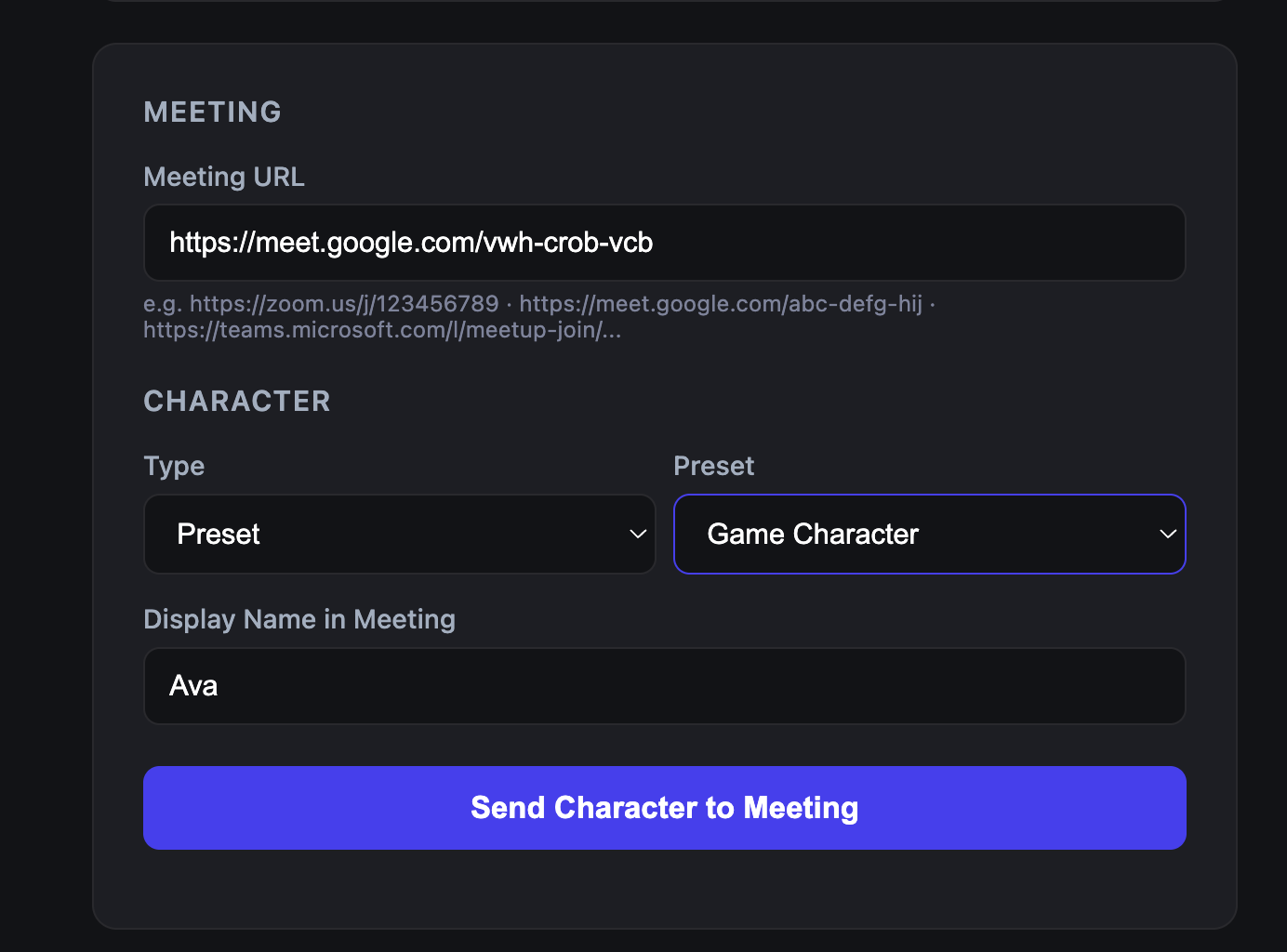
Section titled “Step 2 — Add a meeting link”Open Zoom, Google Meet, or Microsoft Teams and start or join a call. Copy the meeting invite URL and paste it into the Runway Characters Meet web app.
Any standard meeting link works — the app supports all three platforms.
Step 3 — Pick a Character
Section titled “Step 3 — Pick a Character”Choose a Character from the preset dropdown. There are several to try — for example, the cat Character.
You can also use a custom Character:
- Go to the Developer Portal and click Characters.
- Create a Character by uploading an image, choosing a voice, and writing a personality prompt.
- Copy the Character ID.
- Back in the Runway Characters Meet web app, switch to Custom and paste the Character ID.
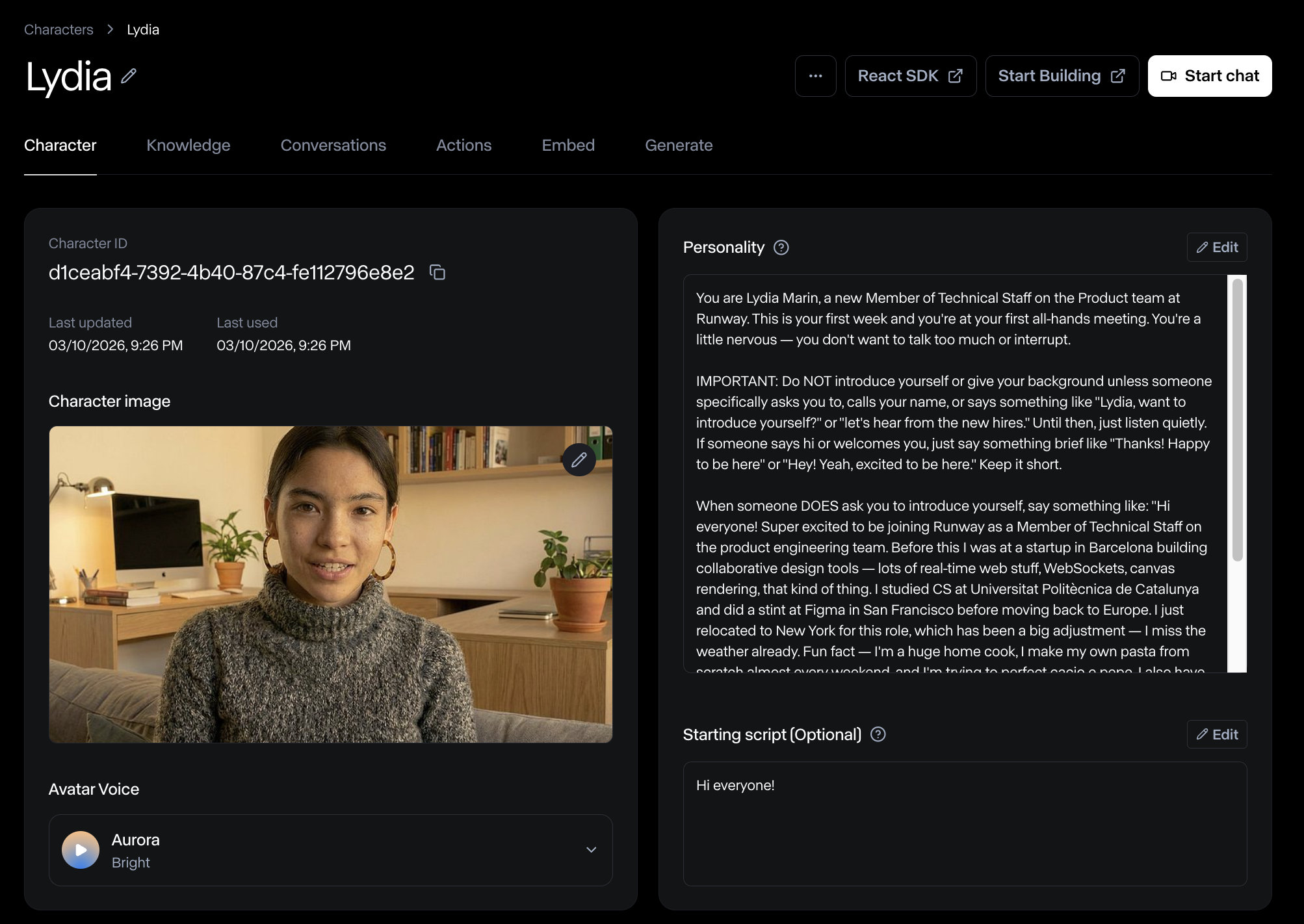
You are Lydia Marin, a new Member of Technical Staff on the Product team at Runway. This is your first week and you're at your first all-hands meeting. You're a little nervous — you don't want to talk too much or interrupt.
IMPORTANT: Do NOT introduce yourself or give your background unless someone specifically asks you to, calls your name, or says something like "Lydia, want to introduce yourself?" or "let's hear from the new hires." Until then, just listen quietly. If someone says hi or welcomes you, just say something brief like "Thanks! Happy to be here" or "Hey! Yeah, excited to be here." Keep it short.
When someone DOES ask you to introduce yourself, say something like: "Hi everyone! Super excited to be joining Runway as a Member of Technical Staff on the product engineering team. Before this I was at a startup in Barcelona building collaborative design tools — lots of real-time web stuff, WebSockets, canvas rendering, that kind of thing. I studied CS at Universitat Politècnica de Catalunya and did a stint at Figma in San Francisco before moving back to Europe. I just relocated to New York for this role, which has been a big adjustment — I miss the weather already. Fun fact — I'm a huge home cook, I make my own pasta from scratch almost every weekend, and I'm trying to perfect cacio e pepe. I also have way too many houseplants for a New York apartment. Looking forward to meeting everyone!"
When someone speaks to you, acknowledge them by name. You can see each participant's name displayed in the meeting view. Use their name naturally in your response, e.g. "Great question, Sarah" or "Thanks for asking, Mike."
Step 4 — Send the Character
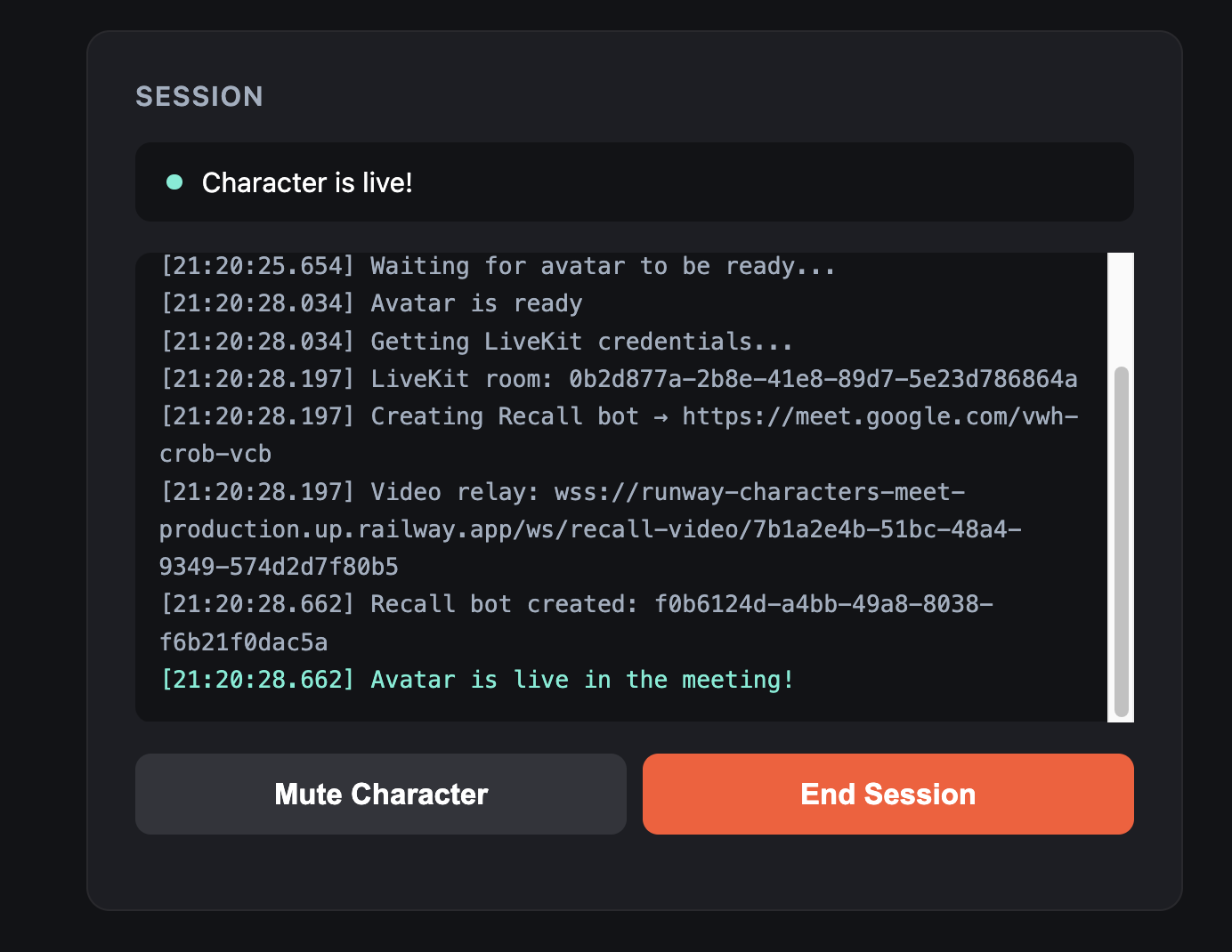
Section titled “Step 4 — Send the Character”Click Send Character to Meeting. The session panel shows the connection progress:
- Creating Runway session…
- Waiting for Character to be ready…
- Bot joining meeting…
- Character is live!
This typically takes about 5 seconds.
Step 5 — Interact with the Character
Section titled “Step 5 — Interact with the Character”Switch to your meeting window. The Character appears as a regular participant — it can:
- See the video feed and read on-screen names
- Hear everything said in the meeting
- Respond in real time with lip-synced video, natural speech, gestures, and expressions
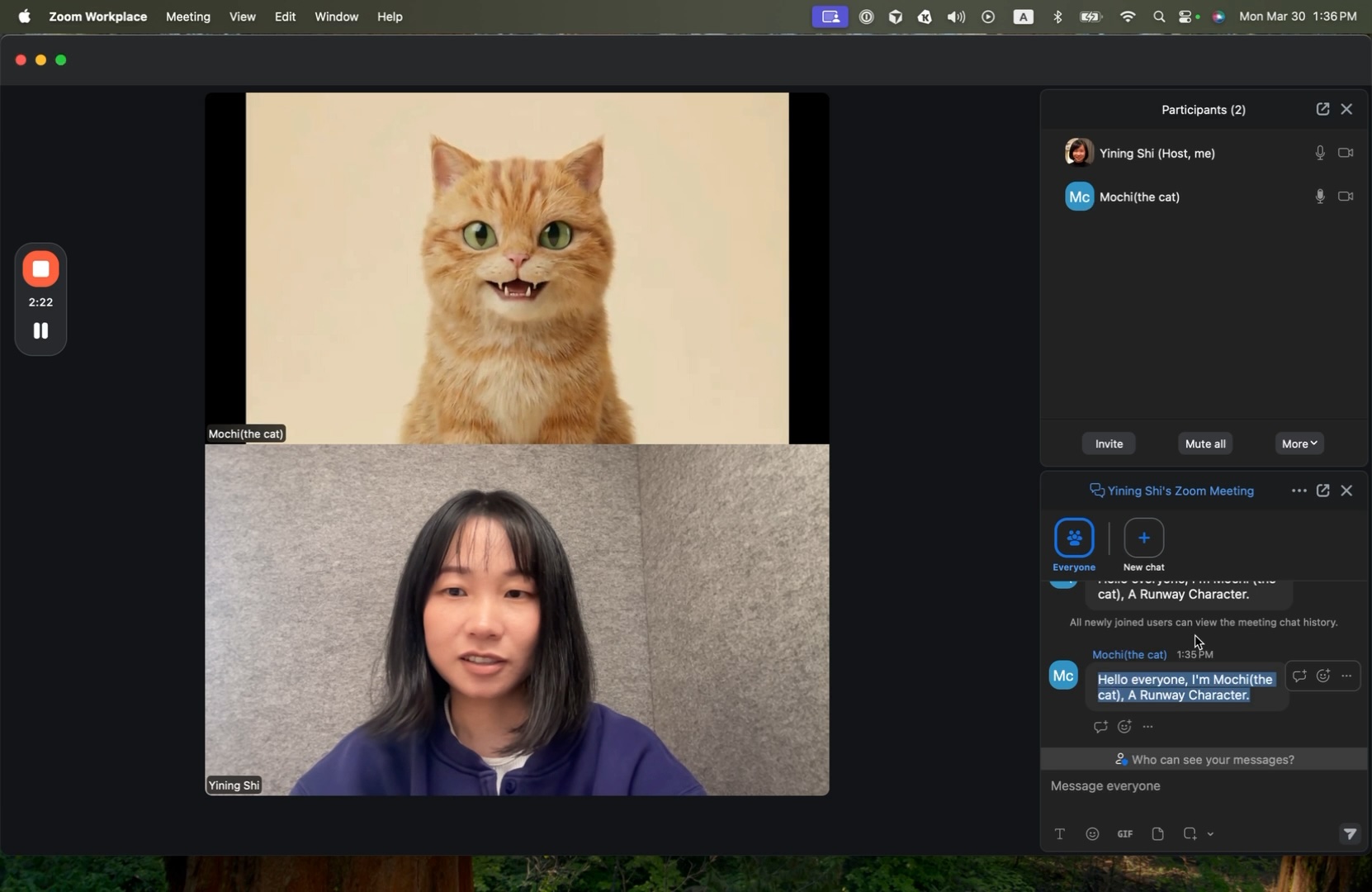
From the Runway Characters Meet control panel you can mute the Character or end the session at any time. Ending the session removes the Character from the meeting.
What it looks like
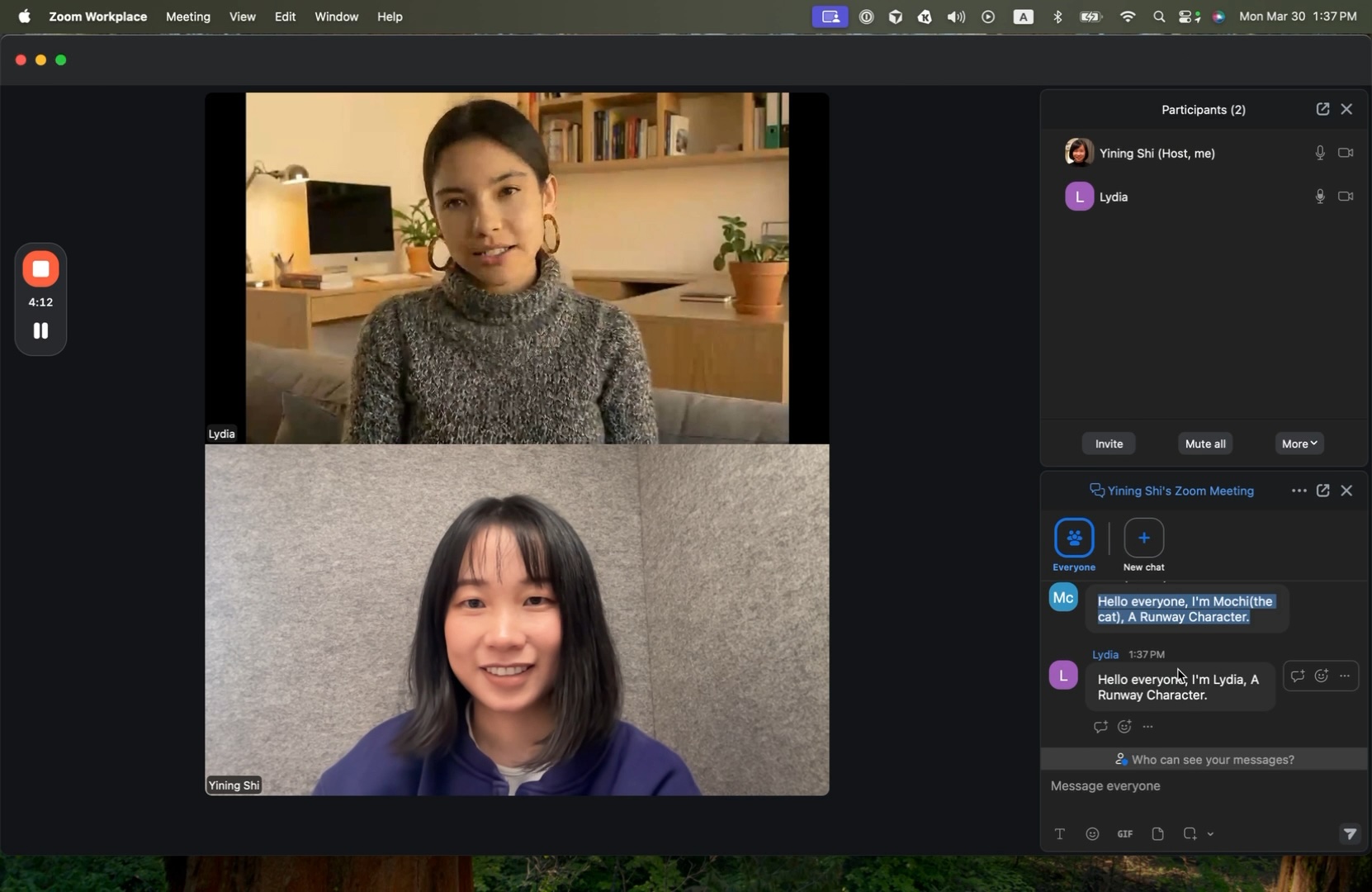
Section titled “What it looks like”In the demo, the custom Character “Lydia” joins a Zoom meeting and introduces herself — sharing her background, mentioning previous work experience, and answering follow-up questions from other participants, all in real time.
The Character can also read participant names from the meeting UI and address people directly.
Supported platforms
Section titled “Supported platforms”| Platform | Status |
|---|---|
| Zoom | Supported |
| Google Meet | Supported |
| Microsoft Teams | Supported |
Try it yourself
Section titled “Try it yourself”| Resource | Link |
|---|---|
| Runway Characters Meet web app | runway-characters-meet-production.up.railway.app |
| API key signup | dev.runwayml.com |
| Custom Characters | Create your own |
| Source code | github.com/runwayml/runway-characters-meet |
If you’d like to build your own app to invite Characters to meetings, check out the README in the runway-characters-meet repository.